
Most “negative keyword work” is really wasted-click cleanup. Your ads are already showing for queries you would never pay for on purpose, and the bill arrives one click at a time. The fastest way to find negative keywords in Google Ads is to use three passes that catch waste from different angles: (1) mine the Search terms report for irrelevant queries that already triggered ads, (2) run controlled keyword expansion (broad match with a test budget) to surface new junk traffic before it scales, and (3) audit landing pages and conversions to spot “relevant-looking” searches that still cannot convert because the intent does not match what your site or offer can deliver.
If you are starting a new account, begin with Method 1 because it fixes paid-for mistakes immediately and gives you a baseline negative list you can reuse. If the account is mature and performance looks stable but lead quality is off or CPA will not move, Method 3 usually finds the leak Search terms cleanup misses. You will see exactly when to use each method, what to click inside Google Ads, the kind of negatives you will uncover, and how long each pass typically takes.
Method 1: Search Terms Report Mining (Best Starting Point)
Search terms are where wasted clicks hide in plain sight. If you want to know how to find negative keywords fast, start by mining the Search Terms report and blocking queries that clearly cannot convert (wrong intent, wrong product, wrong stage).
Use this method when you have any meaningful volume (even a few hundred clicks per month), you run Broad match or Performance Max, or you see spend without conversions. It is also the best first pass for a new account because it uses your real traffic, not guesses.
Step-By-Step: Mine the Search Terms Report and Add Negatives
- Open Google Ads and choose the right scope: account, campaign, or ad group.
- Go to Insights and reports > Search terms. (In some accounts: Keywords > Search terms.)
- Set the date range to the last 30 days. If volume is low, use 60 to 90 days.
- Add columns: Search term, Match type, Clicks, Cost, Conversions, Conv. rate, Search lost IS (budget) (optional).
- Filter for waste first: Clicks >= 3 and Conversions = 0. Then sort by Cost descending.
- Open the search term details and check the landing page and ad group. Confirm the intent mismatch.
- Select irrelevant terms, click Add as negative keyword, choose Campaign or Ad group, then pick Negative match type (usually Phrase or Exact).
- Also add obvious patterns to a shared Negative keyword list in Tools > Shared library > Negative keyword lists.
Example: a Belgian B2B software advertiser bidding on “invoice automation” often sees terms like “invoice template excel”, “free invoice generator”, or “invoice automation jobs”. Those clicks rarely convert, so you add negatives like template, free, and jobs at the campaign or account level.
Time required: 20 to 45 minutes for a small account, 60 to 120 minutes for a mature account with many campaigns. This is the fastest way to find wasted ad spend and stop it from recurring.
Method 2: Keyword Expansion Then Exclusion (The Contrarian Method)
Search Terms mining fixes what already happened. Keyword expansion then exclusion finds what is about to happen, before it burns budget. Use this method when you launch new campaigns, switch match types, broaden targeting, or you still cannot find negative keywords fast enough to keep up with new query variants.
This approach feels backwards because you intentionally invite broader traffic for a short, controlled window, then you cut it out with negatives. Done carefully, it is one of the fastest ways to find wasted ad spend sources you would never think to check.
How To Find Negative Keywords With Controlled Expansion
- Create a test slice: duplicate one high-intent ad group into a new campaign called “Query Expansion Test”. Keep the same ads and landing page.
- Constrain risk: set a small daily budget, set a Max CPC limit, and run on Search only. Keep locations and languages identical to the original campaign.
- Add broad match intentionally: take 5 to 15 proven exact or phrase keywords and add broad match versions in the test campaign.
- Hold other variables steady: do not change creatives, audiences, or landing pages during the test window.
- Monitor query quality daily: open Google Ads > Insights and reports > Search terms. Filter for the test campaign and sort by cost.
- Exclude in batches: add negatives at the right level (ad group if it is specific, campaign if it is systemic). Prefer phrase or exact negatives to avoid blocking good long-tail.
- Graduate winners: move any strong converting queries into the main campaign as exact match keywords.
Example of what you will find: a B2B “CRM software” ad group expanded with broad match often pulls “CRM jobs”, “CRM course”, “CRM meaning”, “Salesforce certification”, “free CRM”, or “HubSpot review”. Those queries rarely match a demo intent, and they inflate spend quickly.
Time required: 15 to 25 minutes to set up the test campaign, then 10 to 15 minutes per day for 3 to 7 days. After that, you usually have a clean negative list you can reuse to fix wasted spend in Google Ads across similar campaigns.
Method 3: Landing Page and Conversion Mismatch Audit
After you have a reusable negative list from testing, the next waste is harder to spot: clicks that look “relevant” in the Search terms report but land on the wrong page or fire the wrong conversion. This is where you find negative keywords in Google Ads by identifying intent your site cannot satisfy with the current landing page and conversion setup.
Use this method when lead quality is poor, sales says “these leads are garbage”, you see lots of micro-conversions (like “time on site” or “page view”), or you route multiple intents to one generic page. It is also the best way to find wasted ad spend in mature accounts that already cleaned obvious junk terms.
Step-By-Step: Map Query Intent to Landing Pages and Conversions
- In Google Ads, open Insights and reports > Search terms and set the last 30 to 60 days.
- Add columns: Search term, Landing page (or Final URL), Cost, Conversions, Conversion action (segment by Conversion action), and Search impression share (optional).
- Filter to terms with Cost above your typical lead value threshold and look for terms where conversions come from the wrong action (for example, “page_view” instead of “lead”).
- Open 10 to 20 high-cost terms. Classify each as: buy-now, comparison, support, careers, learning, or DIY.
- Check the landing page for that intent. If the page cannot satisfy it, add a negative that removes that intent cluster.
- Confirm conversion tracking in Google Ads > Goals > Conversions. Make sure only true business outcomes are set as Primary. Keep micro-conversions as Secondary.
Example mismatches that create wasted spend: a “pricing” query landing on a blog post, “manual pdf” queries landing on a product demo page, or “customer support” queries triggering ads that optimize for a “contact” click. In those cases, negatives like manual, pdf, support, login, refund, or phone number often fix wasted spend in Google Ads faster than bid tweaks.
Time required: 45 to 90 minutes for one campaign, 2 to 3 hours for a full account with multiple conversion actions.
What Should You Add as Negative Keywords (And Where)?
If you want to find negative keywords faster than you can review new queries, standardize what you block and where you block it. The goal is simple: remove intent you cannot (or do not want to) serve, without choking off profitable long-tail searches.
Use this checklist to fix wasted spend in Google Ads systematically. Add broad, universal negatives high in the account. Add product-specific or edge-case negatives closer to the keyword that triggered them.
Negative Keyword Types (With Where to Add Them)
- Low-intent “research” terms (meaning, definition, examples, template, pdf): add to an account-level negative list if you never monetize top-of-funnel traffic. If you run separate TOFU campaigns, add at the campaign level for BOFU campaigns only.
- Price-seeking terms (free, cheap, discount, coupon): usually campaign level. Put them account-level only if you never compete on price.
- Support and login intent (support, customer service, phone number, contact, login, portal): account level for acquisition accounts. Exception: if you sell support plans, keep “support” and block brand-specific support queries instead.
- Employment intent (jobs, vacature, hiring, salary, internship): account level almost every time.
- Competitor and comparison intent (Salesforce, HubSpot, Zoho, Pipedrive, “vs”, “alternative”): place at campaign level. Keep separate conquest campaigns clean by excluding competitors from your core campaigns, then bidding intentionally where allowed.
- Wrong product or wrong audience (student, personal, DIY, consumer terms for a B2B offer): usually campaign level. If it only affects one cluster, add at the ad group level.
- Edge-case blockers (one-off irrelevant brands, locations you do not serve, niche use cases): ad group level to avoid blocking good variants elsewhere.
Practical rule: if you see the same irrelevant pattern in 2+ campaigns, promote it into a shared negative keyword list. If it appears in one ad group, keep it local. This is how to find negative keywords once and stop paying for them repeatedly.
Common Irrelevant Query Patterns to Block First
Shared negative lists work best when you standardize the obvious junk first. If you want to find negative keywords quickly, start by scanning for these recurring query patterns in the Google Ads Search terms report, then block them at the right level (often account or campaign). These patterns are some of the fastest ways to find wasted ad spend and stop paying for clicks that were never going to convert.
- Jobs and hiring intent: jobs, career, vacature, vacatures, hiring, salary, internship, stage, CV, resume.
- Free seekers: free, gratis, open source, crack, torrent, download, no cost, trial (if you do not offer one).
- Cheap and bargain intent: cheap, goedkoop, budget, lowest price, discount, coupon, promo code, deal, outlet, second hand, tweedehands.
- Reviews and research mode: reviews, review, rating, ratings, ervaringen, complaints, alternatief, alternatives, comparison, compare, vs, benchmark.
- Wiki and definitions: wiki, wikipedia, meaning, definition, what is, uitleg, voorbeelden, template (when you sell software or services).
- Support and existing-customer intent: login, sign in, portal, customer service, support, helpdesk, phone number, reset password, refund, cancel.
- DIY and education intent: course, training, certification, tutorial, how to, pdf, ppt, slides, syllabus.
- Competitor navigation: brand names you do not sell, plus app/login queries (for example “Salesforce login”). Add these only if conquesting is not part of your strategy.
How To Find Wasted Ad Spend Faster With Pattern Negatives
Do a quick pass by filtering Search terms for Conversions = 0, sorting by Cost, then Ctrl-F for “jobs”, “free”, “review”, and “wiki”. When you see a pattern across multiple campaigns, add it to a shared negative keyword list. When it only breaks one ad group, keep it local so you do not block useful long-tail queries elsewhere.
How Roger Helps You Find Negative Keywords Without Living in Spreadsheets
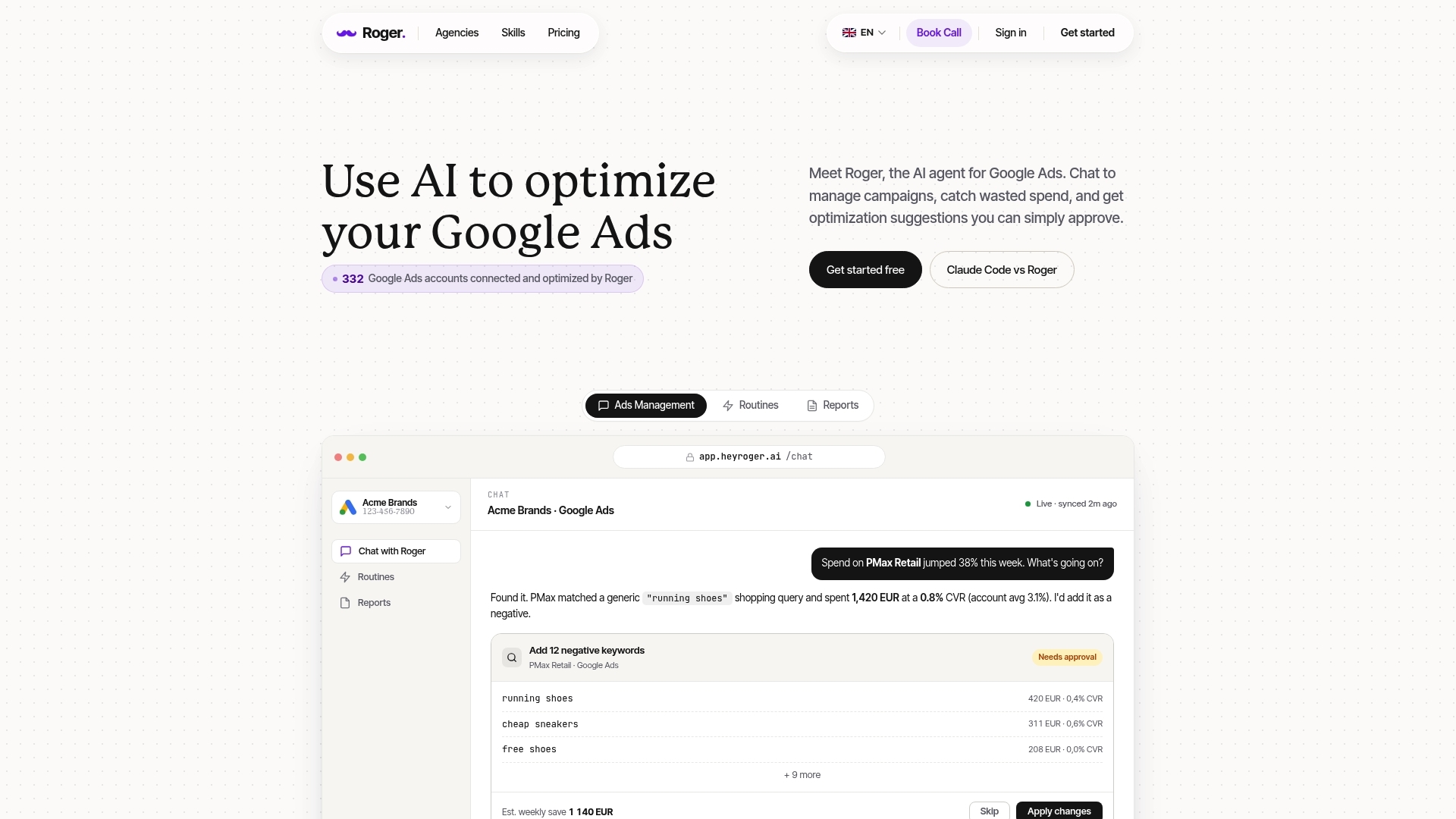
Ctrl-F for “jobs” and “free” works until volume scales, Performance Max expands, and you end up back in a tab jungle. Roger is built for that exact moment: it helps you find negative keywords continuously, with the same discipline you would apply manually, but without living in spreadsheets.
Roger connects to Google Ads (and optionally Google Analytics 4 and Google Tag Manager) and runs an audit focused on how to find negative keywords that reduce wasted spend. It flags high-cost, zero-conversion search terms, clusters them into themes (for example “careers intent” or “templates and downloads”), and suggests negatives with a recommended scope: shared list, campaign, or ad group. You see the evidence (search term, cost, match type, landing page, conversions) before you accept anything.
What Roger Automates (Without Auto-Applying Changes)
- Wasted spend scans: scheduled checks for spend spikes on non-converting queries, including new variants that appear after match type changes.
- Negative keyword suggestions: proposed phrase or exact negatives, plus “promote to shared list” suggestions when a pattern repeats across campaigns.
- Mismatch detection: alerts when a query theme repeatedly lands on pages that do not match intent (support, login, documentation, careers), so you can block the intent or route it to the right page.
- Drafted changes for approval: Roger prepares the negative keyword additions and shows where they will be applied. You approve, edit, or reject.
For teams in Belgium, the permission and privacy model matters as much as performance. Roger uses read-only access by default, you can revoke access in one click, and it uses GDPR-aligned EU data residency. Roger also deletes data within 30 days.
If you want to fix wasted spend in Google Ads this week, start with one routine: schedule a weekly “Search terms waste” check, review the drafted negatives, then promote repeat patterns into a shared negative list. Your account gets cleaner every week, and the cleanup stops being a calendar reminder you ignore.