
Giving an AI agent write access in Google Ads is like letting it drive your account at 120 km/h with no seatbelt. Most days it’s fine. The day it isn’t, the bill arrives fast.
The scary part isn’t some subtle optimization mistake. It’s the big switches and multipliers: budgets copied across campaigns, targeting widened, match types loosened, negatives removed, conversion actions swapped. Those changes take seconds to apply and hours or days to spot, and by then you’ve paid for the learning period, the wasted clicks, and the awkward client call.
This is why “read-only by default” matters. It keeps the agent in analyst mode: it can inspect the account, find issues, and propose fixes, while a human still approves the click that edits bids, budgets, targeting, assets, and measurement.
Once you treat permissions like production access, automation gets safer and, in practice, more useful.
What Does “Read-Only” Mean for a Google Ads AI Agent?
Keeping a human “in the loop” only works if everyone agrees on what the loop controls. In Google Ads, that control is permissions. “Read-only” is simple: an AI agent can see your account data, but it cannot change anything in the account.
Google Ads access typically falls into three buckets: read-only, standard, and admin. Read-only can view campaigns, keywords, search terms, assets, audiences, billing summaries, and performance reports. Standard can create and edit most campaign objects. Admin can do everything, including managing users, linking products, and changing high-impact account settings. Google documents these levels in its access guide: Google Ads: About access levels.
What A Read-Only AI Agent Can Still Do
Read-only does not mean “useless.” It means the agent works like a very fast analyst and QA partner. With read-only access, an AI agent can:
- Audit structure and settings: campaign types, bidding strategies, budgets, geo and language targeting, ad schedules, and policy disapprovals.
- Detect waste: search term leakage, mismatched match types, broken negatives, duplicate keywords, and spend spikes by campaign or query.
- Validate measurement: check which conversion actions exist, which ones are “Primary,” and whether recent performance shifts correlate with tracking changes (often alongside Google Analytics 4 or Google Tag Manager).
- Draft changes: propose negative keyword lists, bid or budget adjustments, asset refreshes, and experiment ideas, packaged as a change set for approval.
- Report clearly: generate weekly or monthly summaries with annotated charts, plain-language explanations, and client-ready exports.
Tools like Roger lean into this model: connect in read-only, run routines and audits, then route every proposed edit through an approval step. You get speed and consistency without giving an agent the power to “click save” in production.
Why Defaulting to Read-Only Prevents the Most Expensive Failure Modes
The approval step is where you prevent the expensive stuff. Most Google Ads “oops” moments are not subtle; they are account-wide switches and multipliers that an agent can change in seconds.
Read-only blocks the failure modes that cause immediate spend waste, long learning cycles, and messy attribution. Here are the big ones that routinely cost real money:
- Bids and budgets: raising a campaign daily budget, switching a portfolio bid strategy, or changing a Target CPA can spike spend fast. Smart Bidding then “learns” from the new behavior, so even after you revert, performance can stay unstable for days.
- Geo targeting: one toggle from “Presence: people in or regularly in your targeted locations” to broader location intent can flood you with out-of-market clicks. A mistaken expansion to “all countries and territories” is the classic budget bonfire.
- Negative keywords and lists: removing a shared negative list, detaching it from campaigns, or adding an overbroad negative (for example, blocking “free” when you sell a free trial) can either explode irrelevant traffic or choke demand. Undoing the change rarely restores the exact query mix you had before.
- Conversion actions and measurement: switching the primary conversion, changing inclusion settings, or pointing bidding to a micro-conversion can mis-train Smart Bidding. If Google Tag Manager or Google Analytics 4 tagging is involved, you can also introduce double-counting that takes days to diagnose.
- Experiments and drafts: applying an experiment, ending it early, or ramping traffic splits can contaminate your read on what worked. Results become hard to trust once the timeline gets muddy.
- Ads and assets: editing Responsive Search Ads, pinning headlines, or swapping final URLs can tank CTR or break landing pages. Policy disapprovals can follow, and re-approvals are not instant.
Rollback is not a clean “Ctrl+Z” because auctions keep running, conversion lag distorts reporting, and automated bidding responds to the new signals. Read-only keeps AI in the role it is best at: spotting issues, drafting fixes, and presenting a change set a human can sanity-check before anything goes live.
When Should You Allow Write Access, and Which Permissions Are Actually Needed?
Write access is the moment an AI agent stops being an analyst and becomes an operator. Allow it only when you can name the exact action you want automated, the blast radius if it goes wrong, and the human who will own the outcome.
Use this checklist before you flip any account from read-only to Standard or Admin:
- Scope: Does the task touch one campaign, or the whole account?
- Reversibility: Can you revert in minutes without breaking learning (for example, pausing a keyword), or does it change bidding signals (for example, conversion actions)?
- Guardrails: Do you have hard limits (budget caps, excluded locations, brand negatives) that the agent cannot override?
- Approval path: Who reviews changes, and where do they get logged (Google Ads Change History, a ticket in Jira, or an agency checklist)?
- Monitoring: Do you have alerts for spend spikes and conversion drops within the same day?
Least-Privilege Permission Map For Common Tasks
In Google Ads, “Read-only,” “Standard,” and “Admin” are blunt instruments. You still want a least-privilege mindset: give Standard only when the work requires edits, and reserve Admin for account governance. Google’s access levels are documented here: About access levels.
- Read-only: audits, search term analysis, policy diagnostics, budget pacing reports, anomaly detection, draft recommendations, client reporting.
- Standard: pausing or enabling keywords and ads, editing match types and negatives, adjusting bids and budgets within a defined cap, updating RSA assets, creating drafts and experiments, applying pre-approved change sets.
- Admin: adding or removing users, linking GA4, Google Tag Manager, Merchant Center, or YouTube, changing billing setup, creating or editing conversion actions, changing account-level auto-tagging and attribution settings.
If you feel tempted to give Admin “just to make it work,” stop. Most automation value lives in Standard edits and disciplined approvals. Keep Admin for the small set of actions that can break measurement or access in one click.
The Contrarian Take: Read-Only Makes AI More Useful, Not Less
Admin access feels efficient until you realize it removes the best part of automation: disciplined review. Read-only forces a draft-first workflow, and that constraint makes AI agents more valuable in real accounts.
A draft-first workflow turns “AI suggestions” into an artifact your team can inspect. You can ask the agent to propose a negative keyword list, a budget reallocation, or a new RSA asset set, then review it like code. That changes the quality bar. People stop arguing from gut feel and start arguing from evidence: search terms, auction insights, conversion paths in Google Analytics 4, and landing page behavior.
Why Draft-First Improves Outcomes
QA becomes systematic. When the agent cannot publish changes, you naturally build checks: “Does this negative block high-intent queries?”, “Will this geo change break Belgium-only shipping?”, “Is this conversion action the Primary one used for bidding?” Those questions should happen every time. Read-only makes them non-optional.
Change logs become readable. Human reviewers want a tight diff, not a mystery. Drafts let you capture: what changed, where, why, expected impact, and rollback plan. This matters when performance shifts two weeks later and someone asks, “What did we touch?”
Teams align faster. Agencies juggle multiple account owners: a strategist, a PPC specialist, and a client stakeholder. A draft is a shared reference point. It reduces Slack debates and prevents “I thought you meant…” edits that quietly accumulate technical debt.
Client trust goes up. Many clients accept automation when they can approve it. Read-only gives them control without slowing the analysis. In practice, this increases adoption because the client sees a consistent review loop instead of surprise edits.
This is why products like Roger default to read-only and route edits through approvals. AI should act like an auditor and a co-pilot, then earn the right to edit through process, not optimism.
How Roger Keeps Google Ads Automation Safe by Default
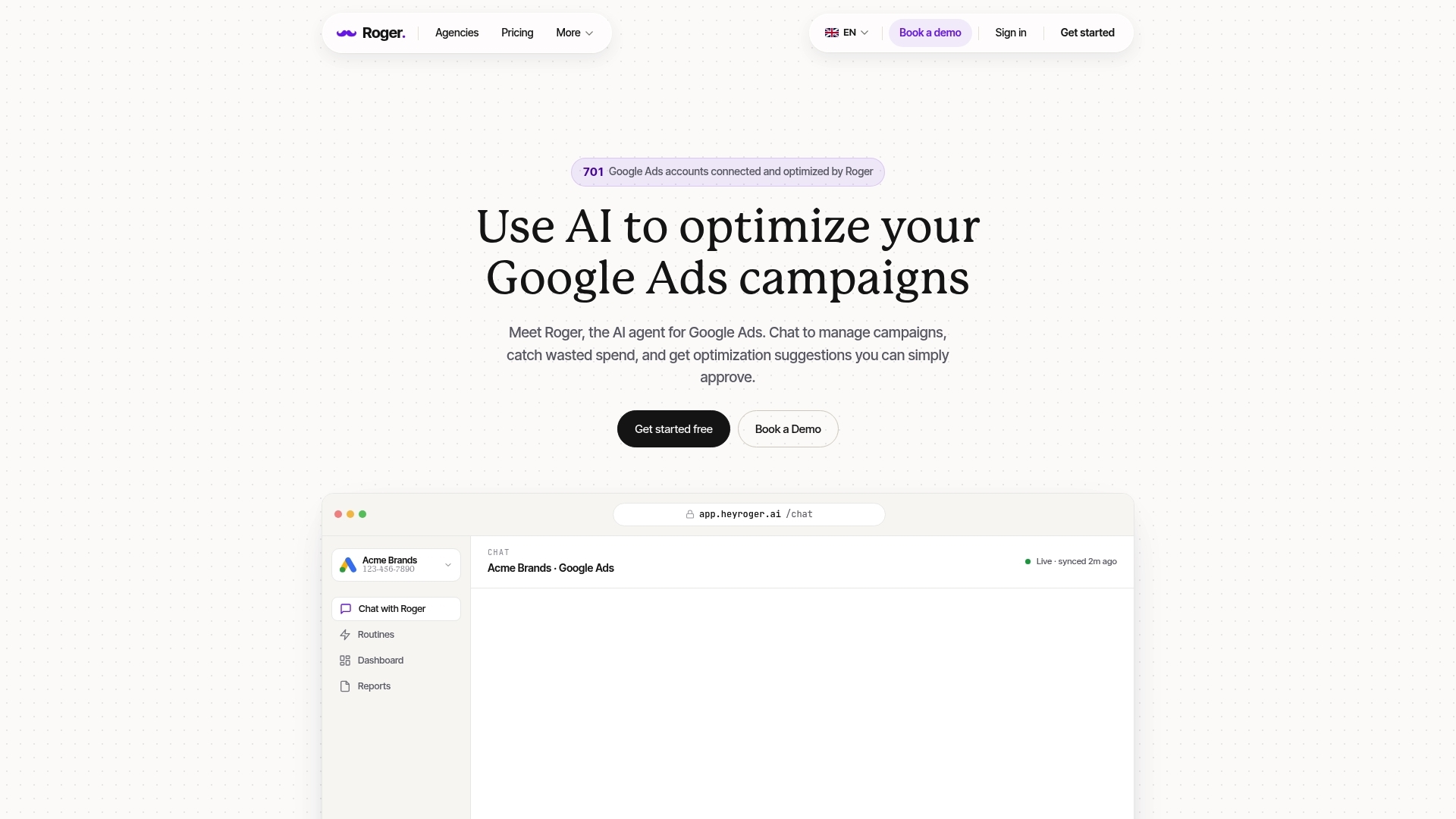
“Earn the right to edit” only works if the product enforces it. Roger treats Google Ads access like production access in engineering: read-only first, then controlled changes with a paper trail.
When you connect Roger to a Google Ads account (or an MCC), it operates with read-only permissions by default. That means Roger can inspect campaigns, search terms, negatives, assets, bidding settings, and Change History, but it cannot push a risky edit at 02:00 because a prompt sounded confident.
Draft-First Changes With Human Approval
Roger’s workflow is built around proposing changes as a reviewable change set. You can ask for concrete actions like “find search terms to add as negatives,” “flag campaigns pacing over budget,” or “suggest RSA asset refreshes,” and Roger returns a draft with the exact objects it wants to touch.
The approval step matters because Google Ads mistakes are usually multiplicative. A single budget or geo change can affect every auction that follows. Roger keeps the last mile human, so you can sanity-check intent, scope, and blast radius before anything goes live.
Monitoring Routines That Catch Problems Early
Read-only still allows strong automation through monitoring. Roger runs scheduled routines and anomaly checks that humans skip when the week gets busy:
- Spend spike and pacing alerts by campaign and account.
- Conversion drops, CPA jumps, and sudden CTR shifts that often signal broken measurement or disapprovals.
- Search term leakage checks that surface irrelevant queries before they become a line item in your invoice.
- Policy and disapproval monitoring, including destination issues that can pause ads.
Because Roger reads the account continuously, it can surface issues the same day they start, then draft a fix for approval.
Client-Ready Reporting Without Permission Risk
Roger turns account data into weekly or monthly reports you can share as a link or export to PDF. Agencies get cleaner client comms, in-house teams get faster stakeholder updates, and nobody has to grant Admin access just to answer “what changed and why?”
Conclusion: Default to Safety, Then Earn the Right to Edit
Client-ready reporting answers “what changed and why?” after the fact. Permissions decide whether you ever have to ask that question under pressure.
My editorial take is simple: Google Ads should be read-only by default for AI agents. Let the agent read everything, flag problems fast, and draft a clean change set. Make a human approve the edits that can burn budget, poison Smart Bidding signals, or break attribution.
A Policy You Can Adopt Today
Write this into your team’s operating rules and you will avoid most automation disasters without slowing down work.
- Start every new connection in read-only. Treat read-only as the standard state, for agencies and in-house teams.
- Require draft-first for all optimizations. The output must include: exact objects affected (campaigns, ad groups, conversion actions), the expected impact, and a rollback plan.
- Grant write access only for a named task. “Ongoing optimization” is not a task. “Pause keywords below X CTR after 1,000 impressions” is a task.
- Time-box write access. Use a fixed window (for example, 24 hours) and then revert to read-only. This prevents permission creep.
- Keep Admin human-only. Admin controls linking (GA4, Google Tag Manager, Merchant Center), billing, users, and conversion actions. Those are governance decisions, not automation chores.
- Log approvals in two places. Use Google Ads Change History plus your workflow system (Jira, Asana, ClickUp, or a shared checklist) so accountability survives staff changes.
Tools like Roger fit this posture well because they assume read-only, route edits through approval, and keep monitoring running when nobody is watching.
If you want AI to earn trust inside your Google Ads accounts, stop treating permissions as a setup step. Treat them as product safety: default to read-only today, then grant scoped write access for one task at a time.