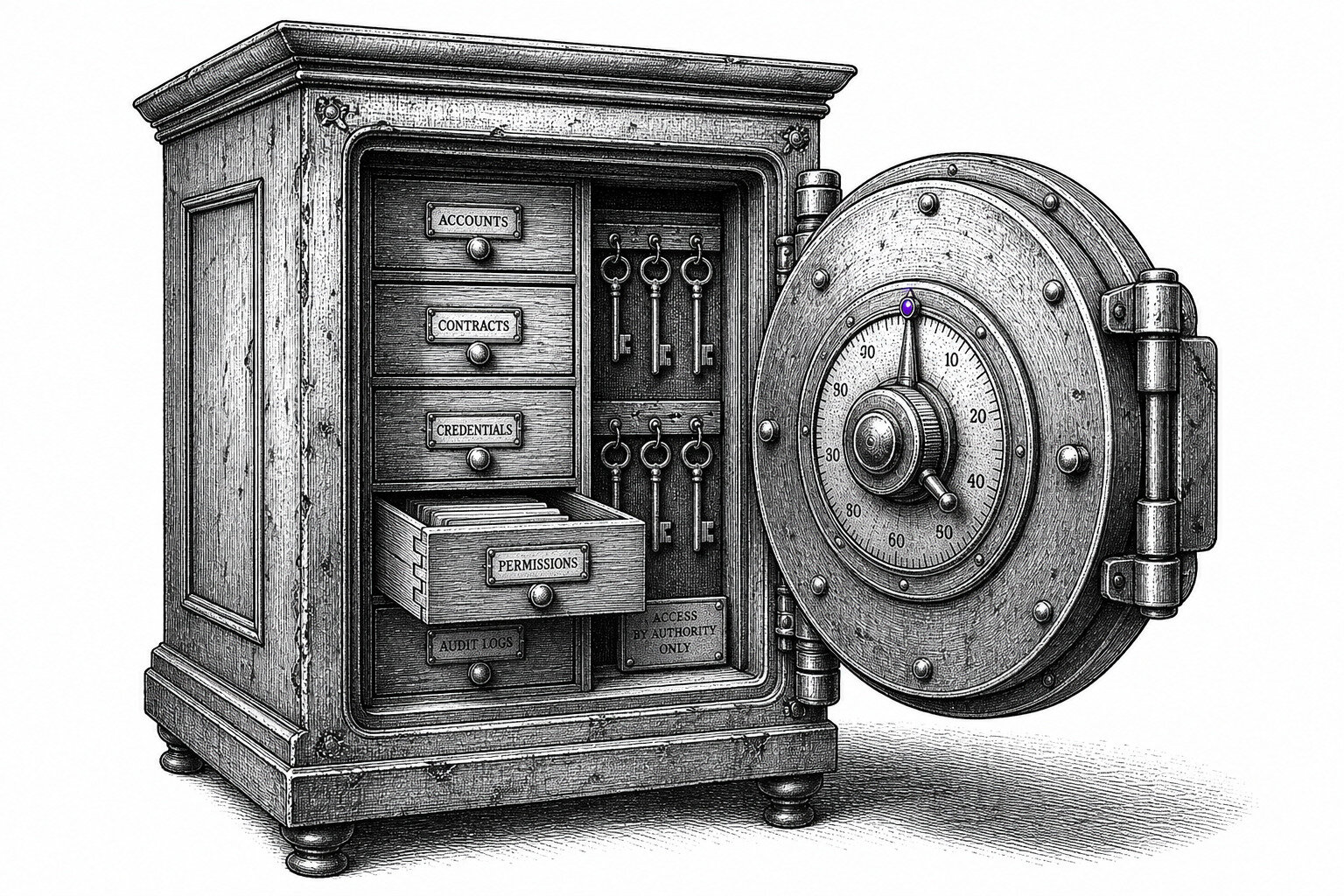
If “AI connected to Google Ads” sounds like handing the keys to a bot, you’re picturing the wrong thing. A Google Ads MCP server is closer to a guarded API bridge: the AI can ask questions about your account and propose changes, but the server decides what gets through and under which permissions.
That distinction matters, because the fastest way to get burned is to treat an AI connection like a normal login. Real setups run on refresh tokens, scoped access, quotas, and logs. Done well, you start read-only, prove you can query what you need, then add tightly controlled write actions that stay reviewable and auditable through the Google Ads API (see Google Ads API docs).
This guide clears up what MCP is (and isn’t), what “approval-first” actually looks like in practice, and the boring failure modes that break production integrations—before you connect anything to a live Google Ads customer ID.
How Does an MCP Server Connect AI to Google Ads?
Most misconceptions happen because people imagine the AI “logging into” Google Ads like a human. It doesn’t. An MCP server typically acts as a controlled bridge: the AI asks for data or proposes an action, and the server translates that into Google Ads API requests under a specific identity and permission set.
In practice, the flow looks like this:
- Auth is established. You connect a Google identity using OAuth 2.0, the same consent flow used by many Google integrations. Google returns a short-lived access token and a refresh token for re-issuing access later.
- Permissions are scoped. The consent screen and Google Ads account access (for example, via a manager account) define what the integration can read or change. The MCP server should store the minimum it needs, and treat tokens like passwords.
- The AI sends an intent. Example: “Show me last 30 days spend by campaign,” or “Draft negative keywords for Search terms with CPA above X.” The AI sends structured parameters to the MCP server, not raw clicks.
- The MCP server calls the Google Ads API. It builds a request (often GAQL, Google Ads Query Language) and calls endpoints in the Google Ads API. Google returns JSON with rows, metrics, and resource names.
- The server normalizes the response. It can map IDs to names, handle pagination, and apply guardrails (for example, block write endpoints when running in read-only mode).
- Suggested changes become a separate step. A safe design returns a proposed “mutate” payload (create/update/remove). Only after explicit approval does the server send mutate requests that change campaigns, ad groups, keywords, or budgets.
Two details matter in production: refresh token handling (revocation, rotation, secure storage) and clear separation between read requests and mutate requests. Google documents the OAuth and API mechanics in the Google Ads API developer guide and Google OAuth 2.0 docs.
Set Up a Google Ads MCP Server: Step-by-Step Checklist
Refresh tokens and read-versus-mutate separation drive the whole setup. Start by proving you can do a read-only query, then add guardrails, logging, and change approval.
- Confirm prerequisites. You need a Google Ads account (or MCC), a Google Cloud project, and a developer token for the Google Ads API (request in Google Ads Manager under API Center). You also need the Google Ads customer ID(s) you plan to query.
- Create OAuth credentials. In Google Cloud Console, configure the OAuth consent screen and create an OAuth 2.0 Client ID. Use the least risky option: a dedicated “ads-ai-connector@” Google Workspace user, not a personal account.
- Implement the MCP server skeleton. Run a small HTTPS service (Node.js with Express, Python with FastAPI, or Go) that exposes tool endpoints such as
list_campaignsandsearch_terms_report. Keep “read tools” and “write tools” in separate code paths. - Complete OAuth and store tokens safely. Exchange the authorization code for an access token and refresh token. Store refresh tokens in a secrets manager (Google Secret Manager, HashiCorp Vault, or AWS Secrets Manager), never in source control or plain environment files.
- Make your first read-only request. Call
GoogleAdsService.SearchStream(orSearch) with a simple GAQL query like campaigns and status. Use the official client libraries from Google Ads API client libraries. - Log a complete test run. Write structured logs (JSON) for: request ID, customer ID, OAuth subject, GAQL, API method, response row count, and latency. Do not log query text that contains PII. Send logs to Google Cloud Logging, Datadog, or Sentry.
- Lock the server down. Require authentication between your AI client and MCP server (API keys, mTLS, or OAuth). Add outbound allowlists so the server only talks to
googleads.googleapis.com. - Prove you cannot mutate. Run an intentional “mutate” call in a staging environment and confirm it fails because you did not implement write tools or you blocked them by policy. Keep this as an automated test.
If you use Roger, this checklist maps to its default posture: read-only connection, explicit approval for edits, and audit-friendly activity history.
Which Permissions Should You Grant (and Which Should You Never)?
Permissioning is where “approval-first” becomes real. If your MCP server can mutate campaigns, a bad prompt, a bug, or a compromised token can change budgets, keywords, or ads at scale. Start with read-only, then add write access only for tightly scoped workflows you can review.
| Access Level | What It Can Do in Google Ads | When It’s Appropriate | Never Use It For |
|---|---|---|---|
| Read-Only | View campaigns, ads, keywords, search terms, audiences, assets, change history, reports. | Audits, monitoring, anomaly alerts, reporting, drafting recommendations for approval. | Automated “fixes” that require edits. |
| Standard | Edit most campaign objects (keywords, ads, assets, targeting, bids). Cannot manage users. | Human-approved apply flows: push a reviewed negative keyword list, pause a reviewed set of keywords. | Unattended automation with broad scopes across many accounts. |
| Admin | Everything Standard can do plus manage access, billing settings (depending on setup), linked accounts. | Almost never for AI connections. Reserve for a small number of humans. | Any MCP server, any vendor integration, any freelancer tool login. |
Least-Privilege Rules by Team Setup
Agencies (MCC): Connect through your Google Ads manager account (MCC), grant the integration read-only at the manager level, then explicitly allow only the customer IDs it should access. If you need write access, grant Standard on a single test account first, then expand. Keep Admin for named humans only.
Freelancers: Avoid using a personal Google login that also controls billing and user management. Ask the client to add your manager account with Standard, and add the integration as read-only unless the client wants “apply” features. Agree on a change-approval process in writing.
In-House Teams: Use a dedicated integration identity, separate from employee accounts. Set read-only for daily monitoring and reporting, then create a second, write-enabled connection used only for approved actions. Audit with Google Ads Change History and your MCP server logs.
If a tool says it needs Admin “to work,” treat that as a red flag. Google’s own access levels are documented in the Google Ads help center: About access levels in your Google Ads account.
The Non-Obvious Failure Modes: Why MCP Setups Break in Production
Over-permission is obvious. The failures that hurt in production usually come from boring plumbing: tokens, account structure, quotas, and missing audit trails.
Production Failure Modes (and Fixes)
- Refresh tokens stop working. Users revoke consent, the OAuth app gets reconfigured, or the “connector” Google user changes password and triggers security events. Fix: use a dedicated Google Workspace user, store refresh tokens in Google Secret Manager or HashiCorp Vault, and add a daily “token health” job that runs a read-only GAQL query. Alert on
invalid_grant. - Manager-account hierarchy surprises. Your MCP server authenticates as an MCC user, but queries fail because you target the wrong
customer_idor you forgetlogin-customer-id. Fix: explicitly map allowed customer IDs, validate the MCC to client link in onboarding, and block any customer ID not on the allowlist. Google documents manager account access in the Google Ads API call structure. - Rate limits and quota spikes. AI tends to ask broad questions (“all search terms, 12 months”) that create heavy GAQL scans and pagination storms. Fix: cap date ranges, require filters, cache stable entities (campaigns, ad groups) for a few minutes, and implement exponential backoff for
RESOURCE_EXHAUSTEDand429. Track quota headers and per-customer request volume. - Partial failures create silent data corruption.
SearchStreamcan return some rows before an error, and batch mutate can succeed for some operations and fail for others. Fix: treat every response as a transaction log. Persist request IDs, compare expected vs returned row counts, and for mutates, require the API to return per-operation status before you mark a change “applied.” - Logging gaps make incidents hard to debug. Teams log “API error” without the GAQL, method, customer ID, and request ID. Fix: structured JSON logs with correlation IDs, Google Ads request ID, latency, and tool name. Redact query text that could contain PII (for example, user-provided search terms).
Approval-first tools reduce blast radius here: if your system stays read-only by default and requires human confirmation for mutates, a quota spike or a mis-targeted customer ID becomes an annoyance, not a budget incident.
How Roger Uses a Safer, Approval-First Connection to Your Google Ads
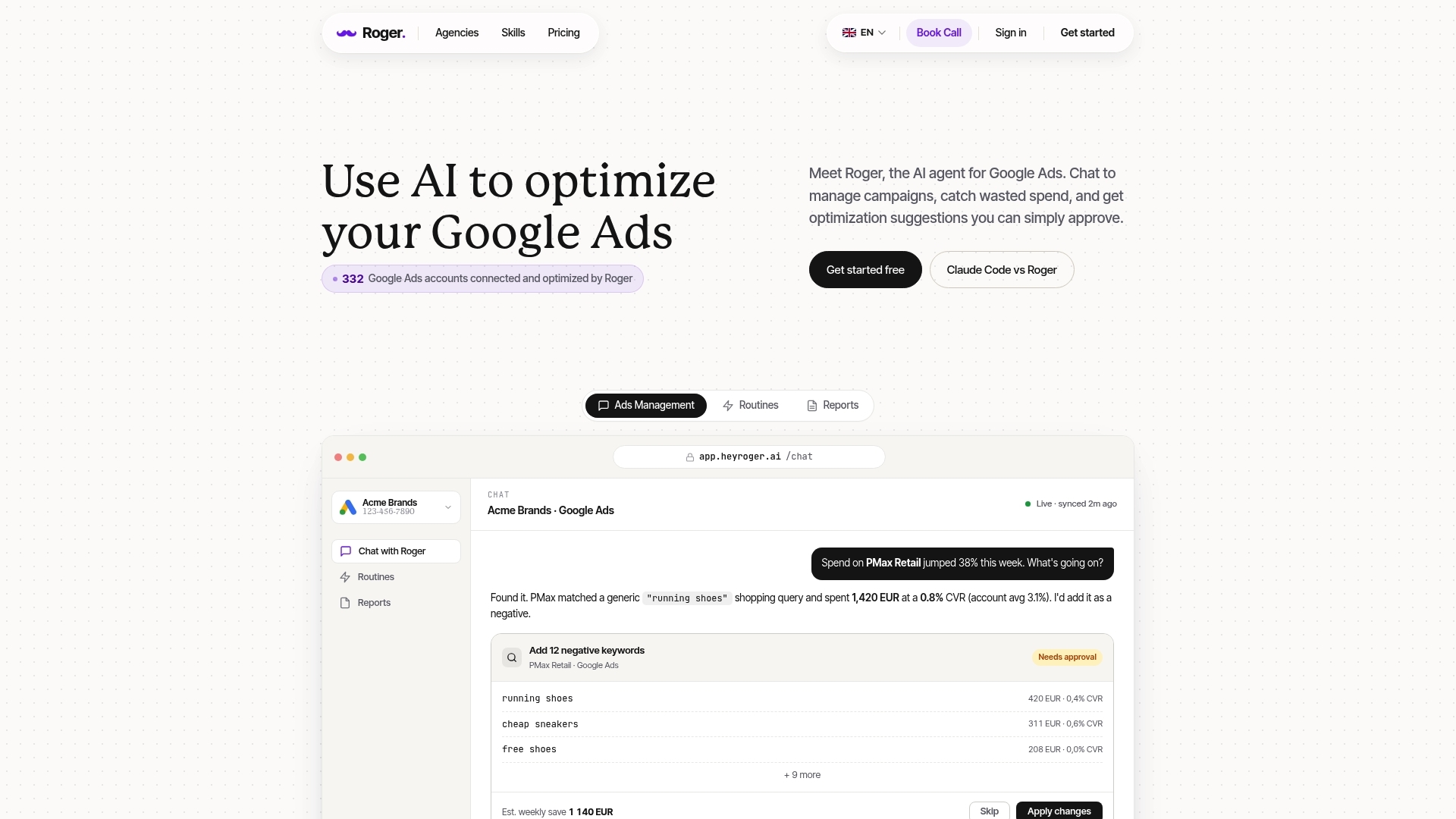
A quota spike or mis-targeted customer ID stays small when your connection cannot push edits. Roger follows that logic: it connects to Google Ads in read-only by default, then treats every account change as a separate, reviewable event.
In practical terms, Roger reads performance data (campaigns, keywords, search terms, budgets, change history) and turns it into audits, monitoring alerts, and drafted recommendations. When you ask for an action such as “add these negatives” or “pause these keywords,” Roger prepares a proposed change set for approval instead of sending a write request immediately.
What The Approval-First Workflow Looks Like
- Connect your account with minimal access. Start read-only for the Google Ads customer ID(s) you want analyzed, including MCC setups.
- Run audits and routines. Roger flags patterns like wasted spend from irrelevant search terms, sudden CPA jumps, broken ads, or budget pacing issues.
- Review a draft. Roger presents a concrete list of proposed changes (for example, negative keywords with match types, keyword pauses, bid suggestions) with the “why” tied to recent metrics.
- Approve or reject. You confirm what gets applied. If you reject, nothing changes in Google Ads.
- Keep an audit trail. You can cross-check applied edits in Google Ads Change History and your internal activity logs.
This “draft then approve” pattern reduces risk for agencies and in-house teams because it limits blast radius from bad prompts, bugs, or compromised tokens. It also fits real workflows, where a human still owns brand, compliance, and budget decisions.
Roger pairs this with ongoing monitoring and client-ready reporting: scheduled health checks, anomaly detection, and shareable weekly or monthly summaries you can export to PDF or send as a link.
On privacy and compliance, Roger uses GDPR-aligned EU data residency, supports one-click revoke, and deletes connected data within 30 days. Roger also follows a CASA Tier-2 audited security process for its Google integration.
FAQ: Google Ads MCP Server and AI Account Connections
Security, revoke, and data deletion policies matter because an AI connection is still an API integration with keys and tokens behind it. These are the questions teams ask right before they connect anything to a production Google Ads account.
FAQ
- How much does a Google Ads MCP server cost?
The protocol is free, but running it is not. Expect costs for hosting (Cloud Run, AWS Lambda, or a VM), logging (Google Cloud Logging, Datadog, or Sentry), and engineering time. If you use the Google Ads API in production, you also need a Google Ads API developer token, which Google issues via the Manager Account API Center. - Is it secure to connect AI to Google Ads?
It can be, if you treat OAuth refresh tokens like passwords, store them in Google Secret Manager, HashiCorp Vault, or AWS Secrets Manager, and enforce least-privilege access. Security usually fails at the integration layer: broad permissions, shared logins, or missing allowlists for outbound traffic togoogleads.googleapis.com. - What access level is required?
Read-only is enough for reporting, audits, anomaly detection, and drafting recommendations. Standard is the minimum for applying changes through the API. Avoid Admin for any MCP server or vendor integration. - Does this work with MCC (manager accounts)?
Yes. Most agency setups authenticate through an MCC and query client accounts by customer ID. The Google Ads API requires correct use oflogin-customer-idfor manager account access, or your requests fail or hit the wrong account. - What data gets stored, and for how long?
The Google Ads API returns reporting data and entity metadata (campaigns, ad groups, keywords, metrics). Your MCP server decides what it persists. A safer default stores minimal cached entities for minutes or hours, keeps structured logs for audits, and avoids storing raw search terms unless you need them for approved workflows. Tools like Roger also offer one-click revoke and delete connected data within 30 days. - Can AI auto-apply changes to my account?
Only if you give it write access and expose mutate tools. An approval-first design keeps the connection read-only by default, generates a proposed mutate payload, then applies it only after a human approves.
If you want one practical next step: connect in read-only, run a single GAQL report for the last 30 days, and verify you can trace every result back to a request ID in your logs before you consider any write access.